

An ALT Code Lookup tool helps you find the right keyboard code for any special character in seconds. Your keyboard can only type a limited set of characters, like letters, numbers, and basic punctuation. But sometimes you need symbols such as ©, ®, ™, €, £, ñ, é, ½, ÷, or ×, along with math signs, currency symbols, and accented letters for foreign languages.
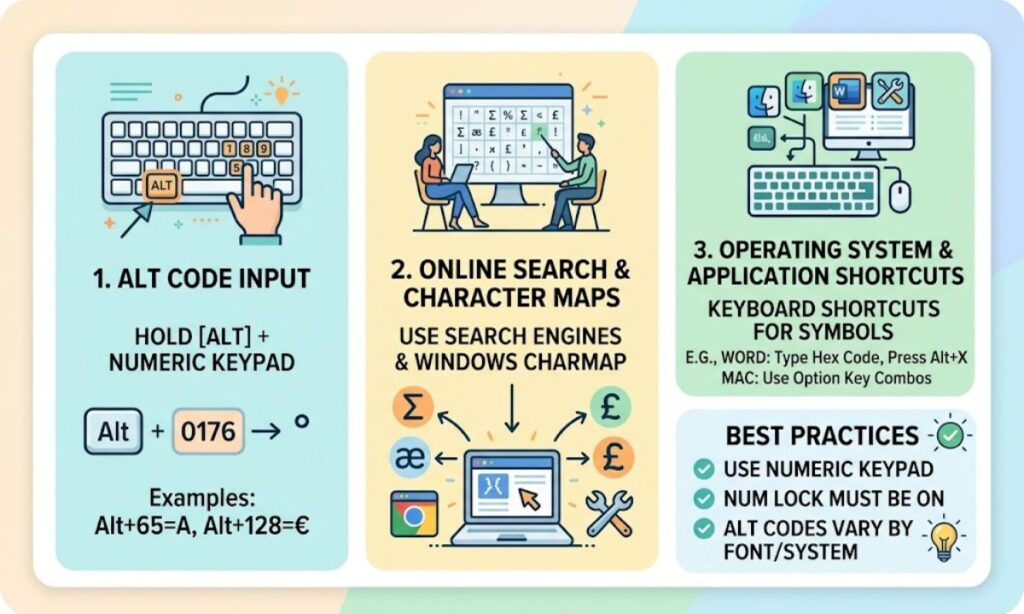
Since these characters aren’t printed on a normal keyboard, Windows offers a built-in system called “ALT codes.” You hold the Alt key and type a number on the numeric keypad, and Windows turns that number into a specific symbol.
For example:
- Alt + 0169 → © (Copyright symbol)
- Alt + 0174 → ® (Registered trademark)
- Alt + 155 → ¢ (Cent sign)
- Alt + 0128 → € (Euro sign)
This guide explains why an ALT Code Lookup and Shortcut Finder is so useful, how it works, how to type ALT codes correctly, and gives you a ready-to-use list of 50+ codes.
Why Do You Need an ALT Code Lookup Tool?
There are hundreds of ALT codes, and nobody can remember them all. An ALT code lookup tool puts every code in one searchable place, so you can:
- Search any symbol or character by name and get its ALT code instantly.
- Browse by category, such as currency symbols, math symbols, punctuation, and accented letters.
- Copy a symbol with one click and paste it straight into your document.
- See a complete list of keyboard shortcuts in one place.
Students, writers, developers, and office workers save a lot of time because they no longer need to hunt through Word’s symbol menu or search the web every time.
How Does an ALT Code Lookup Tool Work?
1. Search Bar Feature
Type a keyword like “copyright,” “euro,” or “arrow,” and the tool instantly shows the matching symbol along with its ALT code.
2. Category-Based Navigation
Symbols are grouped into categories so you can browse even when you don’t know a symbol’s name:
- Currency Symbols ($, €, £, ¥, ₹)
- Mathematical Operators (±, ÷, ×, ≈, ≠)
- Punctuation and Special Marks (§, ¶, †, ‡)
- Accented Characters (á, é, í, ó, ú, ñ)
- Arrows and Symbols (→, ←, ↑, ↓)
- Greek Letters (α, β, γ, δ, π)
3. One-Click Copy Option
If you’re on a laptop without a numeric keypad, you can simply click the symbol to copy it and paste it wherever you need it.
4. Keyboard Shortcut Reference
Good tools also list shortcuts for other methods, like Mac Option-key combinations and Microsoft Word’s Unicode shortcuts, so you have every option in one place.
Most Useful ALT Codes List (50+ Symbols)
Here are the most commonly used Windows ALT codes. Type the leading zero exactly as shown:
| ALT Code | Symbol | Name |
|---|---|---|
| Alt + 0169 | © | Copyright |
| Alt + 0174 | ® | Registered trademark |
| Alt + 0153 | ™ | Trademark |
| Alt + 0128 | € | Euro |
| Alt + 0163 | £ | Pound |
| Alt + 0165 | ¥ | Yen |
| Alt + 0162 | ¢ | Cent |
| Alt + 0164 | ¤ | Currency sign |
| Alt + 0176 | ° | Degree |
| Alt + 0177 | ± | Plus-minus |
| Alt + 0215 | × | Multiplication |
| Alt + 0247 | ÷ | Division |
| Alt + 0188 | ¼ | One quarter |
| Alt + 0189 | ½ | One half |
| Alt + 0190 | ¾ | Three quarters |
| Alt + 0185 | ¹ | Superscript one |
| Alt + 0178 | ² | Superscript two (squared) |
| Alt + 0179 | ³ | Superscript three (cubed) |
| Alt + 0181 | µ | Micro |
| Alt + 0167 | § | Section |
| Alt + 0182 | ¶ | Paragraph (pilcrow) |
| Alt + 0134 | † | Dagger |
| Alt + 0135 | ‡ | Double dagger |
| Alt + 0149 | • | Bullet |
| Alt + 0133 | … | Ellipsis |
| Alt + 0150 | – | En dash |
| Alt + 0151 | — | Em dash |
| Alt + 0145 | ‘ | Left single quote |
| Alt + 0146 | ’ | Right single quote |
| Alt + 0147 | “ | Left double quote |
| Alt + 0148 | ” | Right double quote |
| Alt + 0171 | « | Left guillemet |
| Alt + 0187 | » | Right guillemet |
| Alt + 0161 | ¡ | Inverted exclamation |
| Alt + 0191 | ¿ | Inverted question mark |
| Alt + 0170 | ª | Feminine ordinal |
| Alt + 0186 | º | Masculine ordinal |
| Alt + 0225 | á | a acute |
| Alt + 0233 | é | e acute |
| Alt + 0237 | í | i acute |
| Alt + 0243 | ó | o acute |
| Alt + 0250 | ú | u acute |
| Alt + 0241 | ñ | n tilde |
| Alt + 0209 | Ñ | N tilde |
| Alt + 0252 | ü | u umlaut |
| Alt + 0231 | ç | c cedilla |
| Alt + 0223 | ß | German sharp s |
| Alt + 0229 | å | a ring |
| Alt + 0230 | æ | ae ligature |
| Alt + 0248 | ø | o slash |
A few extra symbols use the older codes without a leading zero:
| ALT Code | Symbol | Name |
|---|---|---|
| Alt + 24 | ↑ | Up arrow |
| Alt + 25 | ↓ | Down arrow |
| Alt + 26 | → | Right arrow |
| Alt + 27 | ← | Left arrow |
| Alt + 224 | α | Alpha |
| Alt + 227 | π | Pi |
| Alt + 251 | √ | Square root |
| Alt + 236 | ∞ | Infinity |
| Alt + 247 | ≈ | Approximately equal |
| Alt + 3 | ♥ | Heart |
For the full technical background, see the Alt code article on Wikipedia, and for every character in the standard, browse the official Unicode code charts.
How to Use an ALT Code Lookup Tool Step by Step
- Open the ALT code lookup page and type the symbol’s name, like “degree” or “euro,” into the search bar.
- If you don’t know the name, browse the category that fits, such as currency, math, or arrows.
- Note the ALT code shown next to the symbol, or click the symbol to copy it.
- Go back to your document and type the code with the Alt key held down, or simply paste the copied symbol.
After a few uses, you’ll remember the codes you need most often, and the ALT code lookup becomes a quick reference for the rare ones. Keeping it bookmarked is the fastest way to handle special characters in emails, school work, invoices, and social media posts.
How to Type ALT Codes Correctly
- Make sure your keyboard has a numeric keypad (the number block on the right side).
- Turn on Num Lock.
- Press and hold the Alt key.
- While holding Alt, type the code on the numeric keypad, not the number row above the letters.
- Release Alt, and the symbol appears.
Tip: Codes with a leading zero (like 0169) use the Windows-1252 character set, while codes without it (like 26) use the older DOS set. That’s why Alt + 0169 and Alt + 169 give different results.
Other Ways to Insert Symbols
- Windows Emoji and Symbol Panel: Press Win + . (period) and open the symbols tab.
- Character Map: Search “Character Map” in the Start menu to browse and copy any character.
- Microsoft Word Unicode Shortcut: Type a Unicode value like 20B9 and press Alt + X to get ₹.
- Mac Option Key: Use Option + G for ©, Option + R for ®, Option + 2 for ™, and Option + 3 for £ on a US keyboard.
- Laptops Without a Numpad: Use the copy option in an ALT code lookup tool or the on-screen keyboard.
Who Benefits From an ALT Code Lookup Tool?
- Students: Math and science symbols like ±, ÷, °, and π for assignments.
- Writers and Bloggers: Proper quotes, dashes, and © notices.
- Developers and Designers: Special characters for UI text and documentation.
- Office Workers: Currency symbols and trademarks in reports and invoices.
- Language Learners: Accented letters like é, ñ, and ü for Spanish, French, and German.
- Social Media Users: Symbols that make bios and captions stand out.
If you want to take your social profile styling further, pair these symbols with our Fancy Font Generator for stylish text, and use the Invisible Character Tool for clean spacing. Our guide to aesthetic fancy fonts shows how to combine them.
Benefits of an ALT Code Lookup and Shortcut Finder
- Saves Time: Find any symbol in seconds instead of searching menus.
- Improves Accuracy: Always get the correct character, like a real em dash instead of two hyphens.
- Works Offline: Once you know a code, it works in almost any Windows app without internet.
- Free to Use: Most lookup tools are free and need no installation.
- Professional Documents: Correct symbols make your work look polished.
Frequently Asked Questions
Why is my ALT code not working?
Usually Num Lock is off, or you’re typing numbers on the top row instead of the numeric keypad. ALT codes only work with the keypad.
Do ALT codes work on Mac?
No. Macs use Option-key combinations instead, such as Option + G for ©.
Can I use ALT codes on a laptop without a numpad?
Some laptops have a hidden numpad activated with the Fn key. Otherwise, copy the symbol from an ALT code lookup tool or use Win + . to open the symbol panel.
Is an ALT code lookup tool free?
Yes. A good ALT code lookup is free, runs in your browser, and needs no sign-up or download.
Conclusion
An ALT Code Lookup and Shortcut Finder is a small but powerful helper for anyone who types special characters. Instead of memorizing hundreds of codes, you can search, copy, and paste the exact symbol you need in seconds.
Bookmark the list above, keep Num Lock on, and you’ll never waste time hunting for ©, €, or ½ again.
Last updated on
